(四)加载Docker镜像
# 华为鲲鹏服务器-学习笔记(基本命令和Docker部分)
笔记分享地址:[https://easydoc.net/s/54024151/YdjAf8qr/VGCwx0S0](https://easydoc.net/s/54024151/YdjAf8qr/VGCwx0S0)
----
## 前言
1、Docker能解决开发、测试、部署环节中的环境一致性问题(所以推荐Docker方式搭建系统环境,且将来可使用K8S实现负载)
2、Docker的安装需要采用内网离线方式部署,大家要明白,实际的生产环境的服务器或者桌面PC是不可以接入互联网的,所以我们在一开始就尽可能要想办法将系统的各种依赖都在本地处理好,通过存储介质交换至目标设备上,尽可能的不使用git和yum方式安装拉取外网资源依赖,不然将来实施人员无法按照手册操作实施。
3、如果你第一次接触docker,请看这里【[图解docker的部署逻辑](https://www.bilibili.com/video/BV1Kx4y1P7c5?p=6&vd_source=0bc9675b3a70f0c0f28fcd4a0b7da7bf)】
-----
## 导读
本文阅读的前置条件是您的Docker已经部署完成、且守护进程已激活、服务已经启用,否则请查看前三章的内容
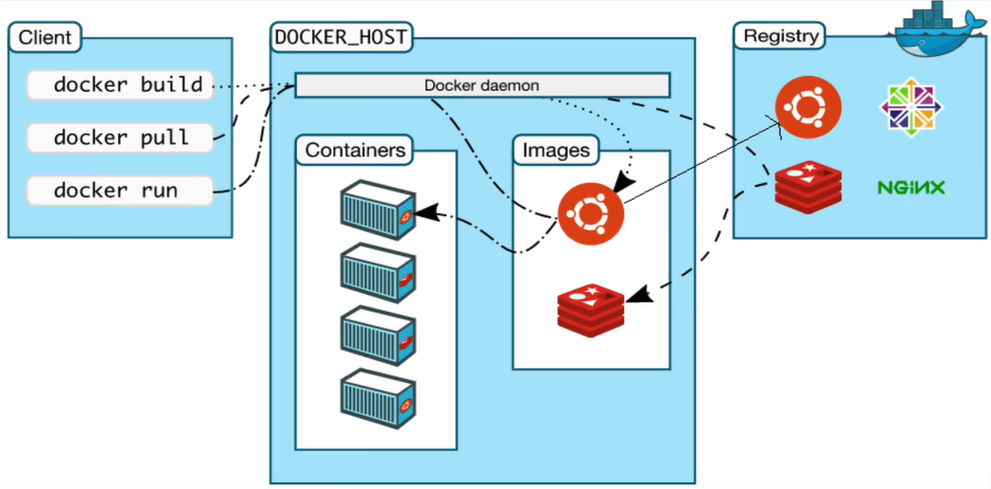
**参考视频资料地址:**
【光速学会Docker用法】
[https://www.bilibili.com/video/BV1Kx4y1P7c5?p=10&vd_source=0bc9675b3a70f0c0f28fcd4a0b7da7bf](https://www.bilibili.com/video/BV1Kx4y1P7c5?p=10&vd_source=0bc9675b3a70f0c0f28fcd4a0b7da7bf)
----------------------------
**笔记大纲目录索引**
[(一)环境准备](doc:VGCwx0S0)
[(二)离线部署Docker到服务器](doc:tM5I6C7b)
[(三)验证Docker离线安装和服务是否正确](doc:67UZXJJr)
[(四)加载Docker镜像](doc:YYIyCsil)
----------------------------
## 知识补充:设置docker镜像加速
由于Docker的官网在国外,国内下载镜像很慢,有时候 [https://hub.docker.com/](https://hub.docker.com/) 和 [https://github.com/](https://github.com/) 会间歇式的终止访问,同时项目的生产环境通常也是不能直接访问互联网的,所以就需要你通过在可以联网的电脑上提前下载好镜像后,通过存储介质拷贝至生产服务器上再进行部署,下面的方案可以有效提速docker镜像的下载速度:
参考资料:
【docker拉取镜像慢?那是因为你没设置docker镜像加速】
[https://www.bilibili.com/video/BV1y24y1o7WK/?spm_id_from=333.337.search-card.all.click&vd_source=0bc9675b3a70f0c0f28fcd4a0b7da7bf](https://www.bilibili.com/video/BV1y24y1o7WK/?spm_id_from=333.337.search-card.all.click&vd_source=0bc9675b3a70f0c0f28fcd4a0b7da7bf)
内容概要:
国内加速地址
1.Docker中国区官方镜像
https://registry.docker-cn.com
2.网易
https://hub-mirror.c.163.com
3.ustc
https://docker.mirrors.ustc.edu.cn
4.中国科技大学
https://docker.mirrors.ustc.edu.cn
5.阿里云容器 生成自己的加速地址
登录:cr.console.aliyun.com
修改方法
创建或修改 /etc/docker/daemon.json 文件,修改为如下形式
{
"registry-mirrors": [
"https://hub-mirror.c.163.com",
"https://docker.mirrors.ustc.edu.cn",
"https://registry.docker-cn.com"
]
}
加载重启docker service docker restart
------
其他国内镜像源参考:
镜像加速器地址
(1)Docker 中国官方镜像
https://registry.docker-cn.com
(2)DaoCloud 镜像站
http://f1361db2.m.daocloud.io
(3)Azure中国镜像
https://dockerhub.azk8s.cn
(4)科大镜像站
https://docker.mirrors.ustc.edu.cn
(5)阿里云
https://<your_code>.mirror.aliyuncs.com
(6)七牛云
https://reg-mirror.qiniu.com
(7)网易云
https://hub-mirror.c.163.com
(8)腾讯云
https://mirror.ccs.tencentyun.com
-------
如何测试
1.修改 vi /etc/docker/daemon.json
```
{
"registry-mirrors": [
"https://mirror.ccs.tencentyun.com",
"https://hub-mirror.c.163.com",
"https://reg-mirror.qiniu.com",
"https://docker.mirrors.ustc.edu.cn",
"https://dockerhub.azk8s.cn",
"http://f1361db2.m.daocloud.io",
"https://registry.docker-cn.com"
]
}
```
注意:具体的配置与数量无关,看你的电脑能ping通几个地址,不需要或者ping不同的就可以删除掉
2.重新加载配置
sudo systemctl daemon-reload
sudo systemctl restart docker
3.docker info 查看是否生效
4.docker rmi node:latest 删除缓存的镜像
5.time docker pull node:latest 计算时间
运行效果如下:
```
[root@DC1-03-001 ~]# vi /etc/docker/daemon.json
[root@DC1-03-001 ~]# cat /etc/docker/daemon.json
{
"registry-mirrors": [
"https://mirror.ccs.tencentyun.com",
"https://hub-mirror.c.163.com",
"https://reg-mirror.qiniu.com",
"https://docker.mirrors.ustc.edu.cn",
"https://dockerhub.azk8s.cn",
"http://f1361db2.m.daocloud.io",
"https://registry.docker-cn.com"
]
}
[root@DC1-03-001 ~]# sudo systemctl daemon-reload
[root@DC1-03-001 ~]# docker info
Client:
Debug Mode: false
Server:
Containers: 1
Running: 0
Paused: 0
Stopped: 1
Images: 1
Server Version: 19.03.8
Storage Driver: overlay2
Backing Filesystem: <unknown>
Supports d_type: true
Native Overlay Diff: true
Logging Driver: json-file
Cgroup Driver: cgroupfs
Plugins:
Volume: local
Network: bridge host ipvlan macvlan null overlay
Log: awslogs fluentd gcplogs gelf journald json-file local logentries splunk syslog
Swarm: inactive
Runtimes: runc
Default Runtime: runc
Init Binary: docker-init
containerd version: 7ad184331fa3e55e52b890ea95e65ba581ae3429
runc version: dc9208a3303feef5b3839f4323d9beb36df0a9dd
init version: fec3683
Security Options:
seccomp
Profile: default
Kernel Version: 4.19.90-17.ky10.aarch64
Operating System: Kylin Linux Advanced Server V10 (Tercel)
OSType: linux
Architecture: aarch64
CPUs: 96
Total Memory: 254.8GiB
Name: DC1-03-001
ID: LIE4:WWSD:FHIY:LUI4:PIF2:FLBX:BCSK:Y2IO:NTLL:C242:JT2R:PDXG
Docker Root Dir: /var/lib/docker
Debug Mode: false
Registry: https://index.docker.io/v1/
Labels:
Experimental: false
Insecure Registries:
127.0.0.1
127.0.0.0/8
Live Restore Enabled: false
Product License: Community Engine
[root@DC1-03-001 ~]# sudo systemctl restart docker
[root@DC1-03-001 ~]# docker info
Client:
Debug Mode: false
Server:
Containers: 1
Running: 0
Paused: 0
Stopped: 1
Images: 1
Server Version: 19.03.8
Storage Driver: overlay2
Backing Filesystem: <unknown>
Supports d_type: true
Native Overlay Diff: true
Logging Driver: json-file
Cgroup Driver: cgroupfs
Plugins:
Volume: local
Network: bridge host ipvlan macvlan null overlay
Log: awslogs fluentd gcplogs gelf journald json-file local logentries splunk syslog
Swarm: inactive
Runtimes: runc
Default Runtime: runc
Init Binary: docker-init
containerd version: 7ad184331fa3e55e52b890ea95e65ba581ae3429
runc version: dc9208a3303feef5b3839f4323d9beb36df0a9dd
init version: fec3683
Security Options:
seccomp
Profile: default
Kernel Version: 4.19.90-17.ky10.aarch64
Operating System: Kylin Linux Advanced Server V10 (Tercel)
OSType: linux
Architecture: aarch64
CPUs: 96
Total Memory: 254.8GiB
Name: DC1-03-001
ID: LIE4:WWSD:FHIY:LUI4:PIF2:FLBX:BCSK:Y2IO:NTLL:C242:JT2R:PDXG
Docker Root Dir: /var/lib/docker
Debug Mode: false
Registry: https://index.docker.io/v1/
Labels:
Experimental: false
Insecure Registries:
127.0.0.1
127.0.0.0/8
Registry Mirrors:
https://mirror.ccs.tencentyun.com/
https://hub-mirror.c.163.com/
https://reg-mirror.qiniu.com/
https://docker.mirrors.ustc.edu.cn/
https://dockerhub.azk8s.cn/
http://f1361db2.m.daocloud.io/
https://registry.docker-cn.com/
Live Restore Enabled: false
Product License: Community Engine
[root@DC1-03-001 ~]#
```
总结:
说明我们创建并编辑了/etc/docker/daemon.json文件后,
重新加载
sudo systemctl daemon-reload
并重启服务
sudo systemctl restart docker
然后,在命令docker info中就可以看到镜像加速的映射地址信息了。
至于
4.docker rmi node:latest 删除缓存的镜像
5.time docker pull node:latest 计算时间
我还不清楚作用是什么?后面再说吧
-------
## 第四章 加载Docker镜像文件
## 一、加载第一个Docker镜像文件(Hello Word)
### 1.1、命令 docker images 的使用
Q:如何查看Docker的镜像信息
A:使用以下命令中即可:
$ docker images
正确运行效果显示:
```
[root@DC1-03-003 ~]# docker images
REPOSITORY TAG IMAGE ID CREATED SIZE
[root@DC1-03-003 ~]#
```
说明:
命令:docker images可以有效查看已经加载的Docker的镜像列表数据信息(当前的镜像库为 “空”)
----
### 1.2、拉取(pull)第一个Docker镜像(hello-world)
提示:
为了验证Docker工作是否正常,Docker官网会提供一个用于测试的官方镜像文件用于验证(需要联网拉取下载),无网的小伙伴可以跳过此步骤:
拉取指令为:
docker pull hello-world
运行指令为:
docker run hello-world
运行效果为:
```
[root@DC1-03-001 docker]# docker pull hello-world
Using default tag: latest
latest: Pulling from library/hello-world
70f5ac315c5a: Pull complete
Digest: sha256:9eabfcf6034695c4f6208296be9090b0a3487e20fb6a5cb056525242621cf73d
Status: Downloaded newer image for hello-world:latest
docker.io/library/hello-world:latest
[root@DC1-03-001 docker]# docker images
REPOSITORY TAG IMAGE ID CREATED SIZE
hello-world latest b038788ddb22 14 hours ago 9.14kB
[root@DC1-03-001 docker]# docker run hello-world
Hello from Docker!
This message shows that your installation appears to be working correctly.
To generate this message, Docker took the following steps:
1. The Docker client contacted the Docker daemon.
2. The Docker daemon pulled the "hello-world" image from the Docker Hub.
(arm64v8)
3. The Docker daemon created a new container from that image which runs the
executable that produces the output you are currently reading.
4. The Docker daemon streamed that output to the Docker client, which sent it
to your terminal.
To try something more ambitious, you can run an Ubuntu container with:
$ docker run -it ubuntu bash
Share images, automate workflows, and more with a free Docker ID:
https://hub.docker.com/
For more examples and ideas, visit:
https://docs.docker.com/get-started/
[root@DC1-03-001 docker]#
```
说明:
上述信息表示你的Docker已经部署正常可以加载镜像文件,并运行Docker镜像中的应用程序了,通过docker images指令,我们可以看到本地的镜像列表中已经包含了一个名为hello-world的REPOSITORY镜像资源。
### 1.3、Docker镜像的导入和导出
参考资料:
【Docker教程】Docker镜像的导入和导出
[https://www.bilibili.com/video/BV1QG4y1D7o1/?spm_id_from=333.788&vd_source=0bc9675b3a70f0c0f28fcd4a0b7da7bf](https://www.bilibili.com/video/BV1QG4y1D7o1/?spm_id_from=333.788&vd_source=0bc9675b3a70f0c0f28fcd4a0b7da7bf)
--------
理论部分:
在实际生产环境中,我们的服务器主机或桌面PC设备无法访问互联网时,我们可以在工作(开发)电脑上提前下载应用厂家和数据库厂家提供的对应CPU架构的镜像压缩包(.tar.gz文件),或通过https://hub.docker.com/官网拉取(pull )所需的镜像文件,进行自定义编辑需要的初始化信息和配置信息后,使用docker save导出并打包为自己专属的Docker镜像文件(.tar.gz文件),然后通过存储介质或联网SSH的SFTP拷贝或上传至生产环境的主机上,再使用docker load载入到生产服务器上,以实现Docker的镜像文件的迁移、部署工作。
核心脚本的指令介绍:
```
# (一)命令参考
# docker save
# docker load
# 语法说明:> 等价于 -o 参数 可以理解为output,导出的意思 ,< 等价于 -i 参数,可以理解为input,导入的意思
# (二)普通导出
# 语法示意
docker save <myimage-id> > <myimage>_<tag>.tar.gz
或者
docker save <myimage>:<tag> > <myimage>_<tag>.tar.gz
# 举例说明
sudo docker save b038788ddb22 > hello-world:latest.tar.gz
# 或者
sudo docker save hello-world:latest > hello-world:latest.tar.gz
# (三)使用gzip导出
# 语法示意
docker save <myimage-id> | gzip > <myimage>_<tag>.tar.gz
# 或者
docker save <repository-name>:<tag> | gzip > <myimage>_<tag>.tar.gz
# 举例说明
sudo docker save b038788ddb22 | gzip > hello-world:latest2.tar.gz
# 或者
sudo docker save hello-world:latest | gzip > hello-world:latest2.tar.gz
# (四)查看镜像
docker images
# (五)运行镜像
docker run hello-world
# (六)删除镜像
# 语法示意
sudo docker rmi <myimage-id>
# 或者
sudo docker rmi <repository-name>:<tag>
# 例如
sudo docker rmi b038788ddb22
# 或者
sudo docker rmi hello-world:latest
# (五)镜像导入
# 举例说明-1
sudo docker load < hello-world:latest.tar.gz
sudo docker save alpine:latest bzip2 pv ssh <用户名@主机名> cat docker load'
```
# 学习心得体会:
参考资料:docker使用gzip压缩导出镜像文件大小
[https://blog.csdn.net/xujiamin0022016/article/details/125341241](https://blog.csdn.net/xujiamin0022016/article/details/125341241)
实操部分(运行结果):
```
[root@DC1-03-001 MyDockerImages]# pwd
/root/MyDockerImages
[root@DC1-03-001 MyDockerImages]# ls
[root@DC1-03-001 MyDockerImages]# sudo docker save b038788ddb22 > hello-world:latest.tar.gz
[root@DC1-03-001 MyDockerImages]# ls
hello-world:latest.tar.gz
[root@DC1-03-001 MyDockerImages]# ll
total 20
-rw------- 1 root root 18944 May 8 02:14 hello-world:latest.tar.gz
[root@DC1-03-001 MyDockerImages]# sudo docker save hello-world:latest > hello-world:latest.tar.gz
[root@DC1-03-001 MyDockerImages]# ll
total 20
-rw------- 1 root root 19968 May 8 02:15 hello-world:latest.tar.gz
[root@DC1-03-001 MyDockerImages]# sudo docker save hello-world:latest > hello-world:latest.tar.gz
[root@DC1-03-001 MyDockerImages]# ll
total 20
-rw------- 1 root root 19968 May 8 02:15 hello-world:latest.tar.gz
[root@DC1-03-001 MyDockerImages]# sudo docker save b038788ddb22 > hello-world:latest.tar.gz
[root@DC1-03-001 MyDockerImages]# ll
total 20
-rw------- 1 root root 18944 May 8 02:16 hello-world:latest.tar.gz
[root@DC1-03-001 MyDockerImages]# sudo docker save b038788ddb22 | gzip > hello-world:latest2.tar.gz
[root@DC1-03-001 MyDockerImages]# ll
total 28
-rw------- 1 root root 4174 May 8 02:17 hello-world:latest2.tar.gz
-rw------- 1 root root 18944 May 8 02:16 hello-world:latest.tar.gz
[root@DC1-03-001 MyDockerImages]# sudo docker save hello-world:latest | gzip > hello-world:latest2.tar.gz
[root@DC1-03-001 MyDockerImages]# ll
total 28
-rw------- 1 root root 4232 May 8 02:18 hello-world:latest2.tar.gz
-rw------- 1 root root 18944 May 8 02:16 hello-world:latest.tar.gz
[root@DC1-03-001 MyDockerImages]# sudo docker save hello-world:latest | gzip > hello-world:latest2.tar.gz
[root@DC1-03-001 MyDockerImages]# ll
total 28
-rw------- 1 root root 4232 May 8 02:18 hello-world:latest2.tar.gz
-rw------- 1 root root 18944 May 8 02:16 hello-world:latest.tar.gz
[root@DC1-03-001 MyDockerImages]# sudo docker save b038788ddb22 | gzip > hello-world:latest2.tar.gz
[root@DC1-03-001 MyDockerImages]# ll
total 28
-rw------- 1 root root 4174 May 8 02:18 hello-world:latest2.tar.gz
-rw------- 1 root root 18944 May 8 02:16 hello-world:latest.tar.gz
```
**总结:**
**从上面的代码打印可以得出以下结论:压缩导出镜像能够有效降低镜像文件的大小**
使用<普通导出>的语法:
docker save <myimage-id> > <myimage>_<tag>.tar.gz
导出的hello-world:latest.tar.gz文件是18944字节
docker save <myimage>:<tag> > <myimage>_<tag>.tar.gz
导出的hello-world:latest.tar.gz文件是19968字节
镜像包的指令有着略微的变化,多次覆盖重复后但是区别不是恨大
但是,使用<gzip导出>的语法:
docker save <myimage-id> | gzip > <myimage>_<tag>.tar.gz
导出的hello-world:latest2.tar.gz文件是4232字节
docker save <repository-name>:<tag> | gzip > <myimage>_<tag>.tar.gz
导出的==hello-world:latest2.tar.gz==文件是4174字节
docker save <myimage>:<tag> > <myimage>_<tag>.tar.gz
导出的==hello-world:latest2.tar.gz==文件是4232字节
镜像包的指令有着略微的变化,hello-world:latest2.tar.gz 多次覆盖重复后但是区别不是恨大
使用使用<普通导出>的语法导出的hello-world:latest.tar.gz 文件是 使用 <gzip导出>的语法后导出的 ==hello-world:latest2.tar.gz== 文件 的==五倍大小==,说明压缩是有用。
使用已经拉取下来的Docker镜像
--------
## 二、加载开源PostgreSQL数据库镜像文件
### 1.1、查找镜像
首先通过指令 docker search postgres 查找 Docker 官网提供的镜像列表
```
[root@DC1-03-001 lib]# docker search postgres
NAME DESCRIPTION STARS OFFICIAL AUTOMATED
postgres The PostgreSQL object-relational database sy… 12215 [OK]
bitnami/postgresql Bitnami PostgreSQL Docker Image 202 [OK]
circleci/postgres The PostgreSQL object-relational database sy… 31
ubuntu/postgres PostgreSQL is an open source object-relation… 27
bitnami/postgresql-repmgr 20
rapidfort/postgresql RapidFort optimized, hardened image for Post… 16
bitnami/postgres-exporter 9
bitnamicharts/postgresql 2
clearlinux/postgres PostgreSQL object-relational database system… 2
kasmweb/postgres Postgres image maintained by Kasm Technologi… 1
dockette/postgres My PostgreSQL image with tunning and preinst… 1
bitnami/postgrest 1
rapidfort/postgresql-official RapidFort optimized, hardened image for Post… 1
cimg/postgres 1
rapidfort/postgresql12-ib RapidFort optimized, hardened image for Post… 0
vmware/postgresql-photon 0
vmware/postgresql 0
bitnamicharts/postgresql-ha 0
hashicorp/postgres-nomad-demo Used in Nomad-Vault integration guide 0
objectscale/postgresql-repmgr 0
circleci/postgres-script-enhance Postgres with one change: Run all scripts un… 0
circleci/postgres-upgrade This image is for internal use 0
drud/postgres 0
cockroachdb/postgres-test An environment to run the CockroachDB accept… 0 [OK]
pachyderm/postgresql 0
[root@DC1-03-001 lib]#
```
NAME: 镜像仓库源的名称
DESCRIPTION: 镜像的描述
OFFICIAL: 是否 docker 官方发布
stars: 类似 Github 里面的 star,表示点赞、喜欢的意思。
AUTOMATED: 自动构建。
--------------------
### 1.2、拖取镜像
Docker官网postgres的各个版本的介绍网址:
[https://hub.docker.com/_/postgres](https://hub.docker.com/_/postgres)
#### 1.2.1、 【有Internet网络】服务器联网状态下的直接拉取镜像的情况
docker pull postgres
下载完成后,我们就可以使用这个镜像了
docker run postgres
#### 1.2.2、 【无Internet网络】服务器脱机状态下的直接拉取镜像的情况
参考资料:
【下载没有 Docker Pull 的 Docker 镜像】
[https://devpress.csdn.net/cicd/62ee235d7e66823466181e2c.html](https://devpress.csdn.net/cicd/62ee235d7e66823466181e2c.html)
如果你的电脑无妨 时,可以在这里获取脚本 download-frozen-image-v2.sh :
[https://raw.githubusercontent.com/moby/moby/master/contrib/download-frozen-image-v2.sh](https://raw.githubusercontent.com/moby/moby/master/contrib/download-frozen-image-v2.sh)
--------------------
## 三、加载山东瀚高数据库镜像文件
## 四、加载武汉达梦数据库镜像文件
## 五、加载人大金仓数据库镜像文件